Schema diff tutorial
In this guide we will create an initial schema on a new database called people on our production branch. We'll then create a development branch called feature/address, following one possible conventio...
In this guide we will create an initial schema on a new database called people on our production branch. We'll then create a development branch called feature/address, following one possible convention for naming feature branches. After making schema changes on feature/address, we'll use the Schema Diff tool on the Branches page to get a side-by-side, GitHub-style visual comparison between the feature/address development branch and production.
Before you start
Section titled “Before you start”To complete this tutorial, you'll need:
-
A Neon account. Sign up here.
-
To interact with your Neon database from the command line:
Create the Initial Schema
First, create a new database called
peopleon theproductionbranch and add some sample data to it.- Create the database.
In the Neon Console, go to Postgres database > Databases → New Database. Make sure your
productionbranch is selected, then create the new database calledpeople. - Add the schema.
Go to Postgres database > SQL Editor, enter the following SQL statement and click Run to apply.
SQL CREATE TABLE person ( id SERIAL PRIMARY KEY, name TEXT NOT NULL, email TEXT UNIQUE NOT NULL );
- Create the database.
Use the following CLI command to create the
peopledatabase.Bash neon databases create --name peopleNote:
If you have multiple projects, include
--project-id. Or set the project context so you don't have to specify project id in every command. Example:Bash neon set-context --project-id empty-glade-66712572You can find your project ID on the Settings page in the Neon Console.
- Copy your connection string:
Bash neon connection-string --database-name people - Connect to the
peopledatabase with psql:Bash psql 'postgresql://neondb_owner:*********@ep-crimson-frost-a5i6p18z.us-east-2.aws.neon.tech/people?sslmode=require&channel_binding=require' - Create the schema:
SQL CREATE TABLE person ( id SERIAL PRIMARY KEY, name TEXT NOT NULL, email TEXT UNIQUE NOT NULL );
- Use the Create database API to create the
peopledatabase, specifying theproject_id,branch_id, databasename, and databaseowner_namein the API call.Bash curl --request POST \ --url https://console.neon.tech/api/v2/projects/royal-band-06902338/branches/br-bitter-bird-a56n6lh4/databases \ --header 'accept: application/json' \ --header 'authorization: Bearer $NEON_API_KEY' \ --header 'content-type: application/json' \ --data '{ "database": { "name": "people", "owner_name": "alex" } }' - Retrieve your database connection string using Get connection URI endpoint, specifying the required
project_id,branch_id,database_name, androle_nameparameters.Bash curl --request GET \ --url 'https://console.neon.tech/api/v2/projects/royal-band-06902338/connection_uri?branch_id=br-bitter-bird-a56n6lh4&database_name=people&role_name=alex' \ --header 'accept: application/json' \ --header 'authorization: Bearer $NEON_API_KEY'The API call will return an connection string similar to this one:
JSON { "uri": "postgresql://alex:*********@ep-green-surf-a5yaumj3-pooler.us-east-2.aws.neon.tech/people?sslmode=require&channel_binding=require" } - Connect to the
peopledatabase withpsql:Bash psql 'postgresql://alex:*********@ep-green-surf-a5yaumj3-pooler.us-east-2.aws.neon.tech/people?sslmode=require&channel_binding=require' - Create the schema:
SQL CREATE TABLE person ( id SERIAL PRIMARY KEY, name TEXT NOT NULL, email TEXT UNIQUE NOT NULL );
- Create the database.
Create a development branch
Create a new development branch off of
production. This branch will be an exact, isolated copy ofproduction.For the purposes of this tutorial, name the branch
feature/address, which could work as a good convention for creating isolated branches for working on specific features.- Create the development branch
On the Branches page, click Create Branch, making sure of the following:
- Select
productionas the parent branch. - Name the branch
feature/address.
- Select
- Verify the schema on your new branch
From the SQL Editor, use the meta-command
\d personto inspect the schema of thepersontable. Make sure that thepeopledatabase on the branchfeature/addressis selected.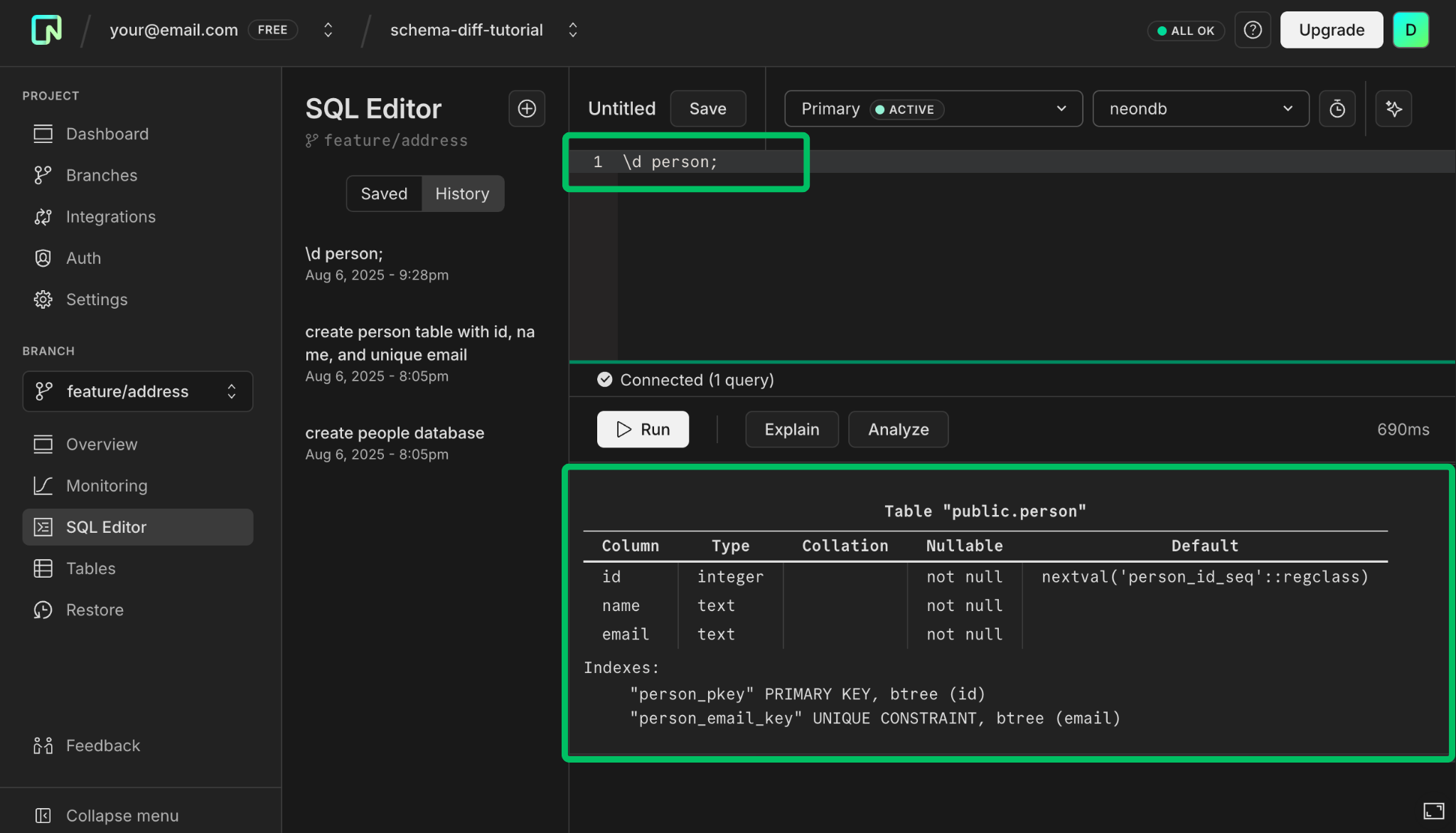
- Create the branch
If you're still in
psql, exit using\q.Using the Neon CLI, create the development branch. Include
--project-idif you have multiple projects.Bash neon branches create --name feature/address --parent production - Verify the schema
To verify that this branch includes the initial schema created on
production, connect tofeature/address, then view thepersontable.- Get the connection string for the
peopledatabase on branchfeature/addressusing the CLI.Bash neon connection-string feature/address --database-name peopleThis gives you the connection string which you can then copy.
Bash postgresql://neondb_owner:*********@ep-hidden-rain-a5pe72oi.us-east-2.aws.neon.tech/people?sslmode=require&channel_binding=require - Connect to
peopleusing psql.Bash psql 'postgresql://neondb_owner:*********@ep-hidden-rain-a5pe72oi.us-east-2.aws.neon.tech/people?sslmode=require&channel_binding=require' - View the schema for the
persontable we created earlier.Bash \d personWhich shows you the schema:
Bash Table "public.person" Column | Type | Collation | Nullable | Default --------+---------+-----------+----------+------------------------------------ id | integer | | not null | nextval('person_id_seq'::regclass) name | text | | not null | email | text | | not null | Indexes: "person_pkey" PRIMARY KEY, btree (id) "person_email_key" UNIQUE CONSTRAINT, btree (email)You can do the same thing for your
productionbranch and get identical results.
- Get the connection string for the
Using the Create branch API, create a development branch named
feature/address. You'll need to specify theproject_id,parent_id, branchname, and add aread_writecompute (you need a compute to connect to the branch).Bash curl --request POST \ --url https://console.neon.tech/api/v2/projects/royal-band-06902338/branches \ --header 'accept: application/json' \ --header 'authorization: Bearer $NEON_API_KEY' \ --header 'content-type: application/json' \ --data '{ "branch": { "name": "feature/address", "parent_id": "br-bitter-bird-a56n6lh4" }, "endpoints": [ { "type": "read_write" } ] }'- Create the development branch
Update schema on a dev branch
Let's introduce some differences between the two branches. Add a new table to store addresses on the
feature/addressbranch.In the SQL Editor, make sure you select
feature/addressas the branch andpeopleas the database.Enter this SQL statement to create a new
addresstable.SQL CREATE TABLE address ( id SERIAL PRIMARY KEY, person_id INTEGER NOT NULL, street TEXT NOT NULL, city TEXT NOT NULL, state TEXT NOT NULL, zip_code TEXT NOT NULL, FOREIGN KEY (person_id) REFERENCES person(id) );- Connect to your
feature/addressbranchBy adding
--psqlto the CLI command, you can start thepsqlconnection without having to enter the connection string directly:Bash neon connection-string feature/address --database-name people --psqlResponse:
Bash INFO: Connecting to the database using psql... psql (16.1, server 16.2) SSL connection (protocol: TLSv1.3, cipher: TLS_AES_256_GCM_SHA384, compression: off) Type "help" for help. people=> - Add a new address table
SQL CREATE TABLE address ( id SERIAL PRIMARY KEY, person_id INTEGER NOT NULL, street TEXT NOT NULL, city TEXT NOT NULL, state TEXT NOT NULL, zip_code TEXT NOT NULL, FOREIGN KEY (person_id) REFERENCES person(id) );
- Retrieve the database connection string for the
feature/addressbranch using Get connection URI endpoint:Bash curl --request GET \ --url 'https://console.neon.tech/api/v2/projects/royal-band-06902338/connection_uri?branch_id=br-mute-dew-a5930esi&database_name=people&role_name=alex' \ --header 'accept: application/json' \ --header 'authorization: Bearer $NEON_API_KEY'The API call will return an connection string similar to this one:
JSON { "uri": "postgresql://alex:*********@ep-hidden-sun-a5de9i5h-pooler.us-east-2.aws.neon.tech/people?sslmode=require&channel_binding=require" } - Connect to the
peopledatabase on thefeature/addressbranch withpsql:Bash psql 'postgresql://alex:*********@ep-hidden-sun-a5de9i5h-pooler.us-east-2.aws.neon.tech/people?sslmode=require&channel_binding=require' - Add a new
addresstable.SQL CREATE TABLE address ( id SERIAL PRIMARY KEY, person_id INTEGER NOT NULL, street TEXT NOT NULL, city TEXT NOT NULL, state TEXT NOT NULL, zip_code TEXT NOT NULL, FOREIGN KEY (person_id) REFERENCES person(id) );
- Connect to your
View the schema differences
Now that you have some differences between your branches, you can view the schema differences.
- Click on
feature/addressto open the detailed view, then click Schema diff.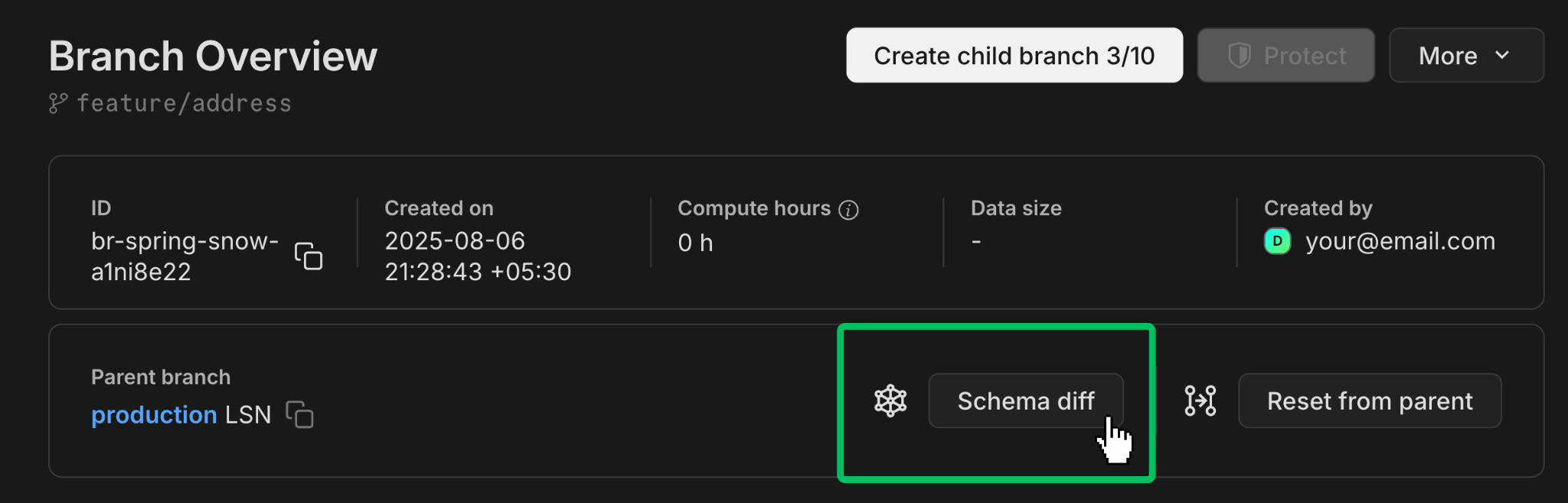
- Make sure you select
peopleas the database and then click Compare.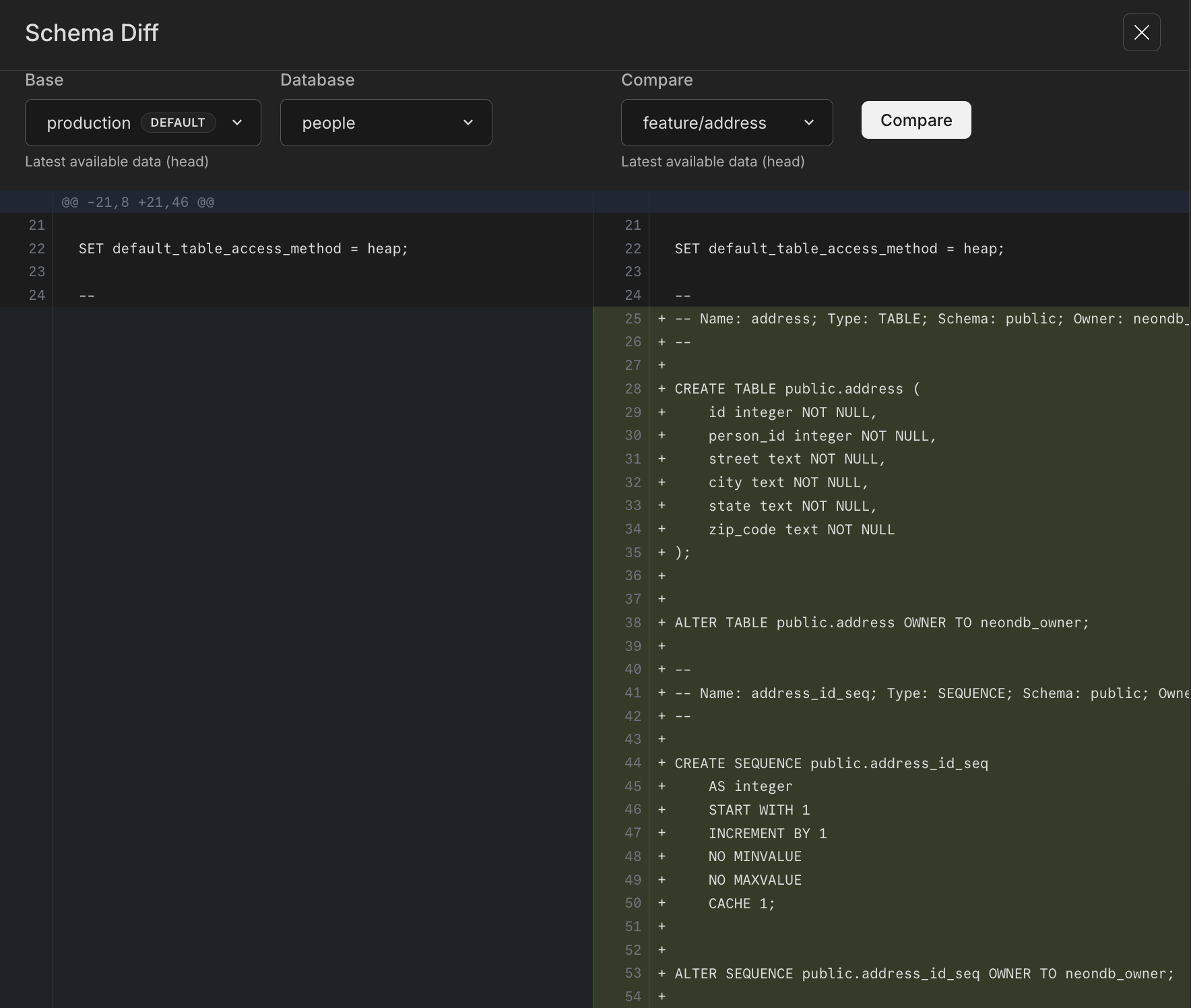
You will see the schema differences between
feature/addressand its parentproduction, including the new address table that we added to thefeature/addressbranch.You can also launch Schema Diff from the Restore page, usually as part of verifying schemas before you restore a branch to its own or another branch's history. See Instant restore for more info.
Compare the schema of
feature/addressto its parent branch using theschema-diffcommand.Bash neon branches schema-diff production feature/address --database peopleThe result shows a comparison between the
feature/addressbranch and its parent branch for the databasepeople. The output indicates that theaddresstable and its related sequences and constraints have been added in thefeature/addressbranch but are not present in its parent branchproduction.diff --- Database: people (Branch: br-falling-dust-a5bakdqt) +++ Database: people (Branch: br-morning-heart-a5ltt10i) @@ -20,8 +20,46 @@ SET default_table_access_method = heap; -- +-- Name: address; Type: TABLE; Schema: public; Owner: neondb_owner +-- + +CREATE TABLE public.address ( + id integer NOT NULL, + person_id integer NOT NULL, + street text NOT NULL, + city text NOT NULL, + state text NOT NULL, + zip_code text NOT NULL +); + + +ALTER TABLE public.address OWNER TO neondb_owner; + +...Compare the schema of the
feature/addressbranch to its parent branch using thecompare-schemaAPI.Bash curl --request GET \ --url 'https://console.neon.tech/api/v2/projects/royal-band-06902338/branches/br-mute-dew-a5930esi/compare_schema?base_branch_id=br-bitter-bird-a56n6lh4&db_name=neondb' \ --header 'accept: application/json' \ --header 'authorization: Bearer $NEON_API_KEY' | jq -r '.diff'Parameter Description Required Example <project_id>The ID of your Neon project. Yes royal-band-06902338<branch_id>The ID of the target branch to compare. Yes br-mute-dew-a5930esi<base_branch_id>The ID of the base branch for comparison (the parent branch in this case). Yes br-bitter-bird-a56n6lh4<db_name>The name of the database in the target branch. Yes peopleAuthorizationBearer token for API access (your Neon API key) Yes $NEON_API_KEYNote: The optional
jq -r '.diff'command extracts the diff field from the JSON response and outputs it as plain text to make it easier to read. This command would not be necessary when using the endpoint programmatically.The result shows a comparison between the
feature/addressbranch and its parent branch for the databasepeople. The output indicates that theaddresstable and its related sequences and constraints have been added to thefeature/addressbranch but are not present in its parent branch.diff --- a/people +++ b/people @@ -21,6 +21,44 @@ SET default_table_access_method = heap; -- +-- Name: address; Type: TABLE; Schema: public; Owner: alex +-- + +CREATE TABLE public.address ( + id integer NOT NULL, + person_id integer NOT NULL, + street text NOT NULL, + city text NOT NULL, + state text NOT NULL, + zip_code text NOT NULL +); + + +ALTER TABLE public.address OWNER TO alex; + +-- +-- Name: address_id_seq; Type: SEQUENCE; Schema: public; Owner: alex +-- + +CREATE SEQUENCE public.address_id_seq + AS integer + START WITH 1 + INCREMENT BY 1 + NO MINVALUE + NO MAXVALUE + CACHE 1; + + +ALTER SEQUENCE public.address_id_seq OWNER TO alex; + +-- +-- Name: address_id_seq; Type: SEQUENCE OWNED BY; Schema: public; Owner: alex +-- + +ALTER SEQUENCE public.address_id_seq OWNED BY public.address.id; + + +-- -- Name: person; Type: TABLE; Schema: public; Owner: alex -- @@ -56,6 +94,13 @@ -- +-- Name: address id; Type: DEFAULT; Schema: public; Owner: alex +-- + +ALTER TABLE ONLY public.address ALTER COLUMN id SET DEFAULT nextval('public.address_id_seq'::regclass); + + +-- -- Name: person id; Type: DEFAULT; Schema: public; Owner: alex -- @@ -63,6 +108,14 @@ -- +-- Name: address address_pkey; Type: CONSTRAINT; Schema: public; Owner: alex +-- + +ALTER TABLE ONLY public.address + ADD CONSTRAINT address_pkey PRIMARY KEY (id); + + +-- -- Name: person person_email_key; Type: CONSTRAINT; Schema: public; Owner: alex -- @@ -79,6 +132,14 @@ -- +-- Name: address address_person_id_fkey; Type: FK CONSTRAINT; Schema: public; Owner: alex +-- + +ALTER TABLE ONLY public.address + ADD CONSTRAINT address_person_id_fkey FOREIGN KEY (person_id) REFERENCES public.person(id); + + +-- -- Name: DEFAULT PRIVILEGES FOR SEQUENCES; Type: DEFAULT ACL; Schema: public; Owner: cloud_admin --- Click on
Need help?
Section titled “Need help?”Join our Discord Server to ask questions or see what others are doing with Neon. For paid plan support options, see Support.