Magic Link
Managed Better Auth is built on Better Auth and provides full support for the Magic Link plugin APIs through the Neon SDK. You do not need to manually install or configure the Better Auth Magic Link p...
Managed Better Auth is built on Better Auth and provides full support for the Magic Link plugin APIs through the Neon SDK. You do not need to manually install or configure the Better Auth Magic Link plugin.
Magic Link lets users sign in by clicking a link sent to their email. No password is required. The flow works like this:
- The user enters their email address.
- Managed Better Auth sends an email containing a unique, time-limited link.
- The user clicks the link, which verifies the token, creates a session, and redirects them to your app.
Prerequisites
Section titled “Prerequisites”- A Neon project with Auth enabled
- The Magic Link plugin enabled (see Enable Magic Link below)
Enable Magic Link
Section titled “Enable Magic Link”- Open the Neon Console.
- Select your project and go to Auth > Plugins.
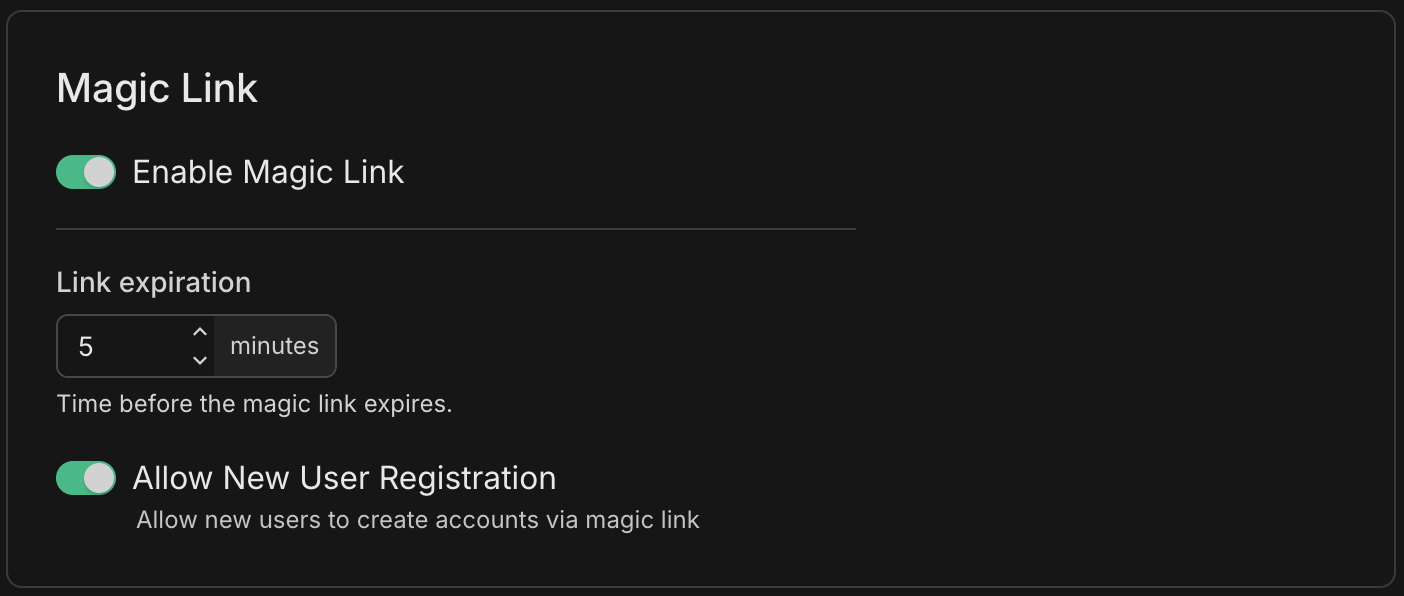
- Toggle Magic Link on.
- Configure the options:
- Link Expiration (5-1440 minutes, default: 5) controls how long a magic link stays valid.
- Allow New User Registration controls whether magic links can be used to create new accounts. When off, magic links only work for existing users.
Send a PATCH request to configure the Magic Link plugin. All request body fields are optional; send only the fields you want to change.
curl -X PATCH \
  "https://console.neon.tech/api/v2/projects/{project_id}/branches/{branch_id}/auth/plugins/magic-link" \
  -H "Authorization: Bearer $NEON_API_KEY" \
  -H "Content-Type: application/json" \
  -d '{
    "enabled": true,
    "expires_in": 5,
    "disable_sign_up": false
}'| Field | Type | Default | Description |
|---|---|---|---|
enabled | boolean | false | Whether the Magic Link plugin is active |
expires_in | integer | 5 | Minutes before the magic link expires (5-1440) |
disable_sign_up | boolean | false | When true, magic links only work for existing users |
Use Magic Link with SDK methods
Section titled “Use Magic Link with SDK methods”Build a custom magic link flow using the Neon SDK. Call signIn.magicLink() with the user's email and a callback URL. Managed Better Auth sends the email and redirects the user to callbackURL after they click the link.
import { authClient } from '@/lib/auth/client';

export async function sendMagicLink(email: string) {
  const { error } = await authClient.signIn.magicLink({
    email,
    callbackURL: '/dashboard',
  });

  if (error) throw error;
}
After calling signIn.magicLink(), show the user a "check your email" message. For a complete working example with error handling, resend, and state management, see the magic link example app in the neon-js repository.
Use Magic Link with UI components
Section titled “Use Magic Link with UI components”If you're already using Managed Better Auth UI components, you can enable Magic Link with a single prop instead of building a custom form. Pass the magicLink prop to NeonAuthUIProvider:
'use client';

import { authClient } from '@/lib/auth/client';
import { NeonAuthUIProvider } from '@neondatabase/auth-ui';
import '@neondatabase/auth-ui/css';
import './globals.css';

export default function RootLayout({ children }: Readonly<{ children: React.ReactNode }>) {
  return (
    <html lang="en" suppressHydrationWarning>
      <body className={'antialiased'}>
        <NeonAuthUIProvider
          authClient={authClient}
          magicLink
        >
          {children}
        </NeonAuthUIProvider>
      </body>
    </html>
  );
}
Users can now sign in with a magic link by selecting the option on the sign-in screen and entering their email.
If you haven't set up Managed Better Auth UI components yet, see the UI components reference for setup, or the Next.js or React quick start for building custom forms instead.
Webhooks
Section titled “Webhooks”If you subscribe to the send.magic_link event, Managed Better Auth skips its built-in email and calls your webhook instead, passing link_type: "sign-in" in the payload. Your handler is responsible for delivering the link (for example, via a custom email template or SMS).
See the Webhooks guide for configuration details and payload format.
Email provider configuration
Section titled “Email provider configuration”For production environments, we strongly recommend using a dedicated email provider. The default shared SMTP should be used only during development. See the Email provider configuration guide for setup instructions.
Need help?
Section titled “Need help?”Join our Discord Server to ask questions or see what others are doing with Neon. For paid plan support options, see Support.